Why Won't My PDFs Combine? Common Merge Problems and Solutions
Can't merge your PDF files? Learn why PDFs won't combine — password protection, corruption, browser issues — and how to fix each problem for free.
PDFs Not Combining? You Are Not Alone.
You selected your files, you clicked merge, and nothing happens — or worse, you get an error. Maybe some files combine but others are skipped. Maybe the merge button is grayed out. The most common cause is password protection — encrypted PDFs cannot be merged until they are unlocked. There are a handful of reasons why your PDFs will not combine, and every one of them has a fix. This guide breaks down the most common PDF merge failures, including how to use our free PDF Unlock tool at /pdf-unlock/ to fix password-protected files, and shows you how to solve them fast.
Common frustrations:
- You tried to merge PDFs and the tool did nothing
- Some files combine but others are mysteriously left out
- You keep getting an error message with no explanation
- You need a working solution right now and do not have time to troubleshoot
Common Merge Failures and How to Fix Them
Check If Your PDFs Are Password-Protected
Password-protected PDFs are the #1 reason merges fail. Encryption blocks any merge operation. If you know the password, use our free PDF Unlock tool at /pdf-unlock/ to remove it first. Once all files are unlocked, they will merge normally. This solves the majority of merge failures instantly.
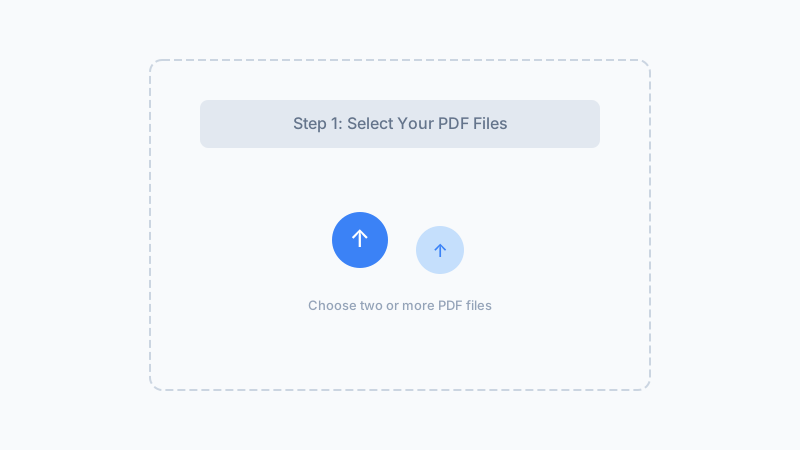
Verify the PDFs Are Not Corrupted
Open each PDF individually in your browser or PDF reader. If a file does not open, shows a blank screen, or displays an error, it is likely corrupted. Corrupted PDFs cannot be merged. Try to re-download or re-export the file from its original source. If it was from an email attachment, ask the sender to resend it.
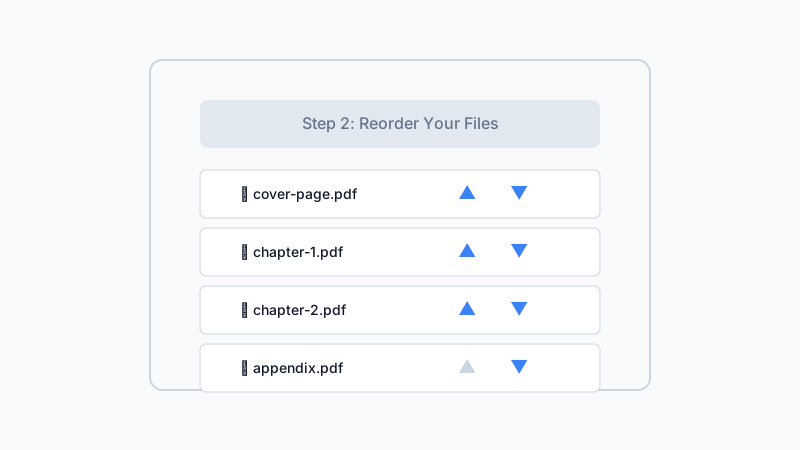
Free Up Browser Memory and Try Again
Large PDFs or too many open browser tabs can exhaust your device's memory, causing the merge to stall or fail silently. Close other tabs and applications, especially any other PDFs you have open. Then reload the PDF merger page and try again with just your target files.
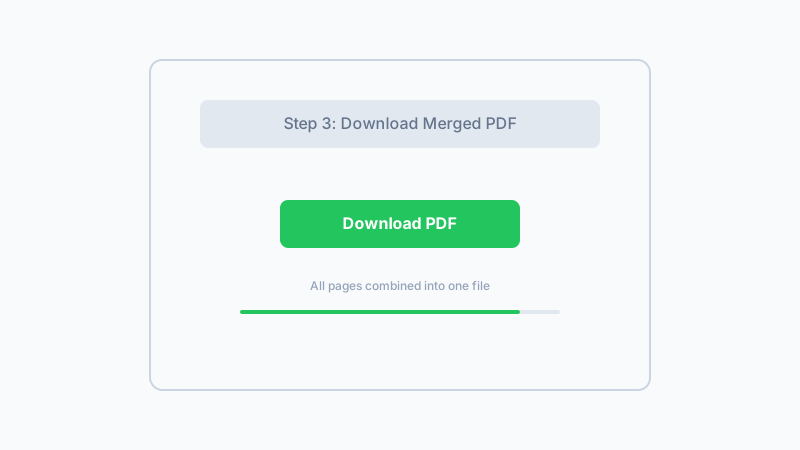
Solve your merge problems and combine your PDFs instantly — free, private, browser-based.
Try the PDF Merger NowFrequently Asked Questions
Why won't my PDFs combine at all?
Why can't I merge password-protected PDFs?
Why are my PDFs not combining even though there is no password?
What should I do if the merge process keeps failing?
Can corrupted PDFs be merged?
Why does the merge work but some pages are missing or blank?
Can I combine PDF files if they are password-protected?
Why Use Our Tool When Your Merge Keeps Failing?
Clear Error Messages
Unlike other tools that just show a generic error, our merger tells you what went wrong so you can fix it. No guessing, no wasted time.
Unlock + Merge Workflow
We offer both a PDF Unlock tool and a PDF Merger. If your files are password-protected, unlock them first, then merge — all free and all in your browser.
No Upload Means Fewer Failures
Server-based merge tools can time out or reject files mid-upload. Since our tool runs locally, there is no network dependency to cause failures.
Tested With Real PDFs
Our merger handles a wide variety of PDF formats, including scanned documents, exported Office files, and PDFs from dozens of different applications.
Fix Your PDF Merge Problems Now
Troubleshoot why your PDFs won't combine, then merge them smoothly with our free, browser-based tool.
Merge PDFs FreeAlso try our free PDF Unlock tool for password-protected files
Related Articles
How to Merge PDF Files Online — Combines PDFs in Your Browser, No Upload
Merge 2-10 PDFs into one file in under 2 seconds. 100% browser-based — files never leave your device. Tested: 5 PDFs (47 MB total) merged in 2.3 s.
How to Merge Large PDF Files: Size Limits, Compression Tips & Free Tools
Struggling to merge PDF files over 100MB? Learn about browser size limits, compression strategies, and how to merge large PDFs for free without uploads.
Password Protected PDF Won't Merge? Here's How to Fix It and Combine Your Files
Your password-protected PDF won't merge with other files? Learn why encryption blocks merging and how to unlock then combine PDFs for free in your browser.
Built by Win — a developer who values privacy-first, client-side tools. All processing happens in your browser; your files never leave your device.